Learn how to reset your City of Austin Network password remotely from a Mac using Citrix AnyConnect.
Get set up with a PC assigned to your Citrix profile. You may have to contact Scott Reedy for assistance with this step, but you'll need a PC assigned to your Citrix profile.
Log in to using your CoA username and password.
URL:Username:coacd\ + your last name and first initial. Ex: coacd\clarkem
Password: your CoA Network password (same as Outlook)
Click the Settings ⚙️ icon in the top right, then "Account Settings."
Click "Change password."
Fill out the Change Password form and click "OK."
Once you change your password in Citrix, immediately log out of AnyConnect. It is possible to lock yourself out because you are logged into AnyConnect with the old password at that time. You can reach out to Scott Reedy to unlock you if that happens.
Turn in all hardware issued from Austin Transportation back to IT Hardware DTS Staff
About
The Data & Technology Services team at Transportation and Public Works applies user-centered design, agile software delivery, and progressive civic tech values to build impactful solutions with Austin’s mobility planners, engineers, technicians, and staff.
We use many modern tools and technologies to deliver solutions to our stakeholders. We build enterprise business systems using Knack, a no-code workflow management service, and we also have a team of developers who build custom software when out-of-the-box doesn’t cut it. We embrace mature frameworks with an eye toward maintainability and long-term stability. We love web mapping and champion open source and open data across the City of Austin.
Our Mission
We leverage high-quality data and modern technologies to empower Transportation and Public Works staff to improve operations, make data-informed decisions, and deliver excellent mobility services to the Austin community. We solve real problems for real people.
Our Values
The principles that guide us as we carry out our work
Embrace change
Business needs change; technologies evolve. We welcome new challenges and improve by adapting to and embracing change. We are stubborn about our goals but flexible in our methods.
Users first and always
We build only what people need, nothing more. User needs are the driver for all decisions. We build with our users, keeping them involved in our process through ideation, sprint reviews, demos, and usability testing.
Empower great people
Our work empowers civil servants to discover and cultivate new skills. We aim to provide opportunities for personal and professional growth and to empower the public to engage with their government through open information and collaboration.
Default to open
The residents of Austin are at the top of our org chart. We share everything we do so that we can collaborate with the public and receive critical feedback. Before restricting access to a line of code, a dataset, a design brief, or an app, we ask, “Why?”
Nurture, include, and grow together
Delivering great tech cannot come at the cost of our wellbeing. We commit to building a safe and inclusive workplace by looking out for each other, listening to each other, and advocating for each other.
Essential Resources & Wikis
Welcome to the Austin Transportation Data & Technology Services team! 👋Here's a bevy of links to get you started.
Data & Technology Services
— Data & Technology Services and our work
Document Storage
We use our shared Google Drive for most of our work, but there are a few exceptions.
DTS Google Drive
We love Google Drive, Docs, Sheets, and Slides for collaborative document editing and management. Since CTM does not have an enterprise Google subscription, we follow carefully.
Using Google within these parameters ensures we can fulfill PIRs, follow records-retention policies, and maintain access to employees' work when they leave the City.
To prevent the proliferation of different versions of multi-editor documents, all collaborative documents are stored in a single location:
Team Lead Checklist for New DTS Team Members
Team leads are responsible for tracking new team members' onboarding in Github:
Create an epic "Onboard [Name]" with two issues:
"Perform DTS Team Lead onboarding tasks," assigned to yourself and the new team member's supervisor—i.e. the person who will sign their timesheets. Copy and paste the checklist from this page into the issue body.
DTS Offices
8700 Cameron Road
Aka "8700", "Cameron"
Data & Technology Services is located at Transportation Public Works' Cameron Road location. Our offices are in 8700 Cameron Road, alongside Arterial Management offices and the Mobility Management Center.
Welcome to DTS
We are so happy to have you here. Let's configure some tools and ensure you have access to all the resources needed to hit the ground running. 💪👟⚡
Day 1 🐣
These are the high-priority tasks. Let your supervisor know if you are unable to complete any of them on your first day.
Working Remotely from a Mac
There are a few special procedures and applications for City of Austin staff who want to work remotely using a Mac.
This documentation has not been updated since CTM updated their Mac policies and procedures.
Working at DTS Basics
Municipal Civil Service
The rules govern the process for employee hiring, promotions, lateral transfers, reduction-in-force, disciplinary actions, and appeals. If any supplemental information included here conflicts with the official MCS rules, those rules take precedence.
Network Access
Wifi
Cameron Road: coa-atd-secure-wifi — password in 1password
Slack
We use Slack to stay in touch with our teammates. Your supervisor will provide you with an invitation to the .
Please join Austin Transportation channels, prepended with atd. These include:
atd
Offboarding Checklist
IT Permissions and Access
Ben White
We have an area at Ben White for DTS Staff. Ask your supervisor before attempting to work from that location.
Austin Mobility News - Weekly newsletter covering projects and programs related to Austin Transportation and Public Works.
Get There ATX Newsletter - Monthly newsletter featuring mobility-focused events and ways to convert your car-based commute and other trips to other transportation modes.
GIS files, Visio documents, and other files that can only be used on a Windows operating system are stored on the ATD departmental network G drive.
Everything Else
Other documents can be stored in Google Drive or our G drive, whichever is most practical for the team and customer.
Be aware that anything stored on your local drive — the Windows C drive or Mac HD — is not backed up or accessible via other devices.
How to Connect to Network Drives on a Mac
You will need to be either hard-connected to the City network orconnected via VPN. From Finder on Mac: Go > Connect to Server then type the address in the Server Address field
H drive: smb://coacd.org/home/PWDhome/[your username]
"Perform DTS onboarding tasks," to assign to the new team member once they have a Github username. In the meantime you can direct them to the Welcome to DTS Gitbook page.
Add these checklists into the issue bodies. If you have issues with formatting, you can take these steps:
After the network account is created and you have their @austintexas.gov email address:
After they've created their Google and Github accounts:
After they notify you that they've uploaded their headshot:
After they notify you that their Miro account was created:
Once HR has added regular/temp employees to the UKG timekeeping system, their supervisor—Peggy, Amenity, or Diana— must:
All your passwords relating to work should be stored 1Password and only in 1Password.
Week 1 🐥
Let your supervisor know if you are unable to finish any of these during your first week.
Week 3 🐓
Unless you are a contractor, you have a few last to-dos! The HR and DTS Portals are updated every 2 weeks with employee information from the City's enterprise HR system, so wait until week 3 for these ones.
Ask questions! Be a sponge and absorb it all! 🧽💦🌈
Bonus: Update this wiki if you find broken links or missing information! 😉
The TrendMicro website has Mac installers and installation instructions here. You will need the serial number in CTM's Anti-Virus for Non-COA Computers doc.
Network Access with Cisco Secure Client VPN (formerly Anyconnect)
You need to be on the City of Austin's internal network to access resources such as shared network drives, the HR Portal, and enterprise web applications like eCombs and eCapris. You can use Cisco Secure Client (formerly AnyConnect) to connect to the City's Virtual Private Network (VPN) when working remotely.
2. Double-click the downloaded file to open the disk image, then double-click on AnyConnect.pkg.
3. When the installer opens, click "Continue," "Agree," and leave the defaults on for the installation type:
4. When prompted, provide the password you use to log in to your computer, and the installation will begin. It will take a few minutes to run.
5. Once told the installation has been completed successfully, click "Move to Trash" to delete the installer.
6. You should now see a Cisco folder in your Applications folder. Double-click on the Cisco Secure Client to open the application.
Using Secure Client
1. Open the application. In the empty field below "Ready to Connect," enter the IP address of the City's VPN server.
The IP address is sensitive information. Get it directly from your supervisor or another Mac user.
2. Click the "Connect" button.
2. A warning will appear. Do not check the "Always trust..." option and click "Connect Anyway."
A new browser window/tab will open and you will be prompted to login to the City of Austin SSO portal. Once complete, the browser window will close and your VP
Uninstalling AnyConnect
When troubleshooting your VPN connection, you may want to wipe all installs of AnyConnect and start fresh. You can use Uninstall AnyConnect, located in the Cisco folder in Applications.
Shared Drive Access
You must access the G Drive from the City of Austin Network. If you don't have a wired connection, use AnyConnect.
1. From the Finder menu, select Go > Connect to Server.
2. Enter smb://coacd.org/dfs/ATD in the Server Address field and click "Connect."
3. You will be prompted for your City of Austin Network Username and Password. Once submitted, a Finder window will open to the G Drive.
All Austin Transportation Department employees are required to work 8.5 hours/day. That includes a mandatory 30-minute lunch. You can take a longer lunch but can’t count it as work time. You can work through lunch but still need to put in 8.5 hours.
Your start time can range between 8am and 9:30am. We ask that you work the same schedule consistently and post your daily stand-up when you log on.
When meetings get scheduled outside your regular work hours, you’re expected to attend them. Let your team lead know in advance when you cannot attend a meeting that requires your attendance.
Flexing Hours
You can occasionally flex your hours to accommodate doctor appointments, errands, etc.; give your team lead a heads-up in advance. We understand that unexpected absences can come up.
“Non-exempt,” aka "hourly" employees, can flex hours within a single work week (Sunday-Saturday), so long as you reach 40 total hours. "Exempt" employees can flex hours across the two-week pay period, so long as your hours total 80.
Leave Time
If you can’t or don’t want to flex, you can use sick time for doctor appointments and personal time (vacation, personal holiday hours, comp time, etc.) for anything else. You may also use leave without pay (LWP), but LWP requires pre-approval and should be discussed with your supervisor at least two weeks in advance.
Non-exempt employees can earn overtime and comp time, which require advance approval from your supervisor.
If you are a new regular employee, you, unfortunately, can’t use vacation or personal holiday leave during your six-month probation period. If you need to take time off during probation, you have three options: flex hours, use sick time, or take leave without pay.
Regardless of the leave you use, you must submit a leave request in advance through the eTimesheet system (see below).
Timesheets (Needs to be updated for UKG)
You'll have to fill out a paper timesheet during your first two weeks. Your supervisor will help you get one from HR.
You need to be on the City of Austin internal network to access various resources such as shared network drives, the HR Portal, the original CitySpace, and many City of Austin Sharepoint sites.
Cisco AnyConnect VPN is the client we use to remotely connect to the City network from a Mac.
If you use your personal computer for work at the any CoA office be advised that you should never directly connect to the CoA Ethernet network. You can connect to the CoA internal network via VPN when necessary. CTM runs occasional security scans for devices that shouldn't be on the network and if they discover your personal computer, they reserve the right to take your computer, run scans, and review files.
atd-data-tech - open to all City employees, default for team discussions
atd-data-tech-real-talk - private channel for sensitive information/conversations or those completely irrelevant to anyone else, e.g. "Turn in your timesheets"
atd-dev
atd-product
atd-standup - everyone on the DTS team posts a daily standup here
Daily Stand Up
We keep each other up to date on our progress and blockers by posting in #atd-standup every day:
What did you do yesterday?
What are you doing today?
Any blockers?
It's helpful to cite specific Github issues you're working on.
The Data and Technology Services team is using GitHub and Zenhub for agile project management. This is an overview of our process.
Set up
if you don't have one already.
Project Delivery Workflow
are the solutions we build for our customers, including Knack apps, AMANDA apps, custom software, and data systems. We improve and extend our products over time so that they deliver continuous value to Austin Transportation as business needs evolve.
are time-boxed endeavors. They accomplish a singular goal and have a defined completion date. Examples include:
Dockless-Mobility
This page contains technical details related to our management of dockless mobility data (e-scooters, bicycles, etc).
Mobility Data Specification (MDS)
We require dockless mobility operators to provide us with real-time trip reporting feeds in compliance with the .
Docker
We use to manage runtime environments. Our Docker Hub is .
Useful Commands
Start docker engine
View all images
Show running containers
DTS Website Management
We use the Data & Technology Services website, Austinmobility.io, to showcase our work and communicate with stakeholders. The content is driven by Github, Zenhub, and the DTS Portal.
Basics
An issue will appear on the or pages if it:
PostgREST
We use to generate APIs for our PostgreSQL databases.
Release Process
This is the general process we use to release new code to one of our custom applications. The Apps team has defined a separate, specialized .
The Product Manager & Dev Lead collaboratively plan what issues will be included in the release
The Dev Lead ensures that all issues are assigned, completed, and tested before the release
Pypgrest (Python Client)
We've created a Python client, , for interacting with the Postgrest API.
Log into the Zenhub web app using your normal GitHub credentials to activate your account.
Pipelines
The Zenhub board uses a Kanban-like format where issues are represented as cards and move across the board as they enter various stages of completion. Our workspace pipelines are:
New Issues - Awaiting triage by Level I Support or Product.
Icebox - Recorded and understood, but not committed to. Lack of evidence of overall value or applicability. We don't want to delete these and create a cycle of raising duplicate issues, so we keep them in our icebox with just enough information attached that we can pick it up sometime in the future — if and when we choose to do so.
Needs Scoping - Potential projects or features that require clarification or exploration before presenting to builders for estimation and prioritizing.
Backlog - Issues that are ready to be tackled by the team when the time comes. This pipeline is prioritized: the higher an issue is on this list, the higher the priority.
On Deck - Slated for work in the current sprint. During Sprint Planning, we pull all issues that we intend to work on during the sprint into On Deck.
Blocked - Issues that cannot be completed — often waiting on CTM or user feedback.
In Progress - This one is self-explanatory. Each Issue in this pipeline should have an assigned owner who is responsible for its completion.
Ongoing - Continually supported products and activities.
Review/QA - Proposed as complete but awaiting approval — code review and/or acceptance testing — before closure.
Ready to Deploy - Code or configuration that is ready to be deployed to production.
Closed - Done! 🙌
Issues
Tracking our work in issues not only helps us stay organized, it gives us data on where we're spending our time. To create an issue, click the green "New issue" button in the upper right corner of the "Issues" page or our Zenhub board.
Screenshot of the Issues page with the "New issue" button circled.
You will see a list of our custom issue templates. These are handy for creating bug reports, meetings, etc. with boilerplate information and structure.
Issue Titles
Issue titles should begin with a verb* and summarize the work to be completed. This convention improves data readability and helps keep our tasks action-oriented and unambiguous. Since you'll be using Product: and Type: labels, you don't need to spell out application names or issue types.
Accurate labeling is necessary for several reasons:
Labels allow us to view related issues across the Zenhub pipelines. For example, during Apps Team Sprint Planning, we filter down to Service: Apps and during our periodic meetings with AMD we use the Workgroup: AMD label to look at all the work — across teams, of all sizes — that we're doing for them.
Finally, labels are critical to the service delivery data that we use to track, analyze, and improve our work.
Required labels
Workgroup — the customer we're serving; Workgroup: DTS for internal work and Workgroup: TPW for department-wide work. Every issue should have one, and only one,Workgroup: label.
Service — The DTS service team who will be doing the work. If there are two teams working on the same thing, copy the issue so there's one for each team. Every issue should have one, and only one,Service: label
— The type of request or task. Every issue should have one, and only one,Type: label
Project and/or Product labels, if applicable
refer to a substantial scope of related work that will reach a state of relative completion, such as the
are solutions that we continue to support over time, including all in-house applications, such as the Vision Zero Crash Data System
Optional labels
A DTS team or individual product manager may find these additional label categories helpful
Impact — The effect of a bug, infrastructure failure, etc.
Impact: 1-Severe — Severely impacts TPW service delivery
Impact: 2-Major — Causes a major interruption of TPW service delivery
Impact: 3-Minor — Deteriorates TPW service delivery
Impact: 4-None — Does not affect TPW service delivery
— To designate priority of a potential feature or enhancement
Impact: 1-Severe — Severely impacts TPW service delivery
Impact: 2-Major — Causes a major interruption of TPW service delivery
— The external team or vendor executing the issue
Estimates
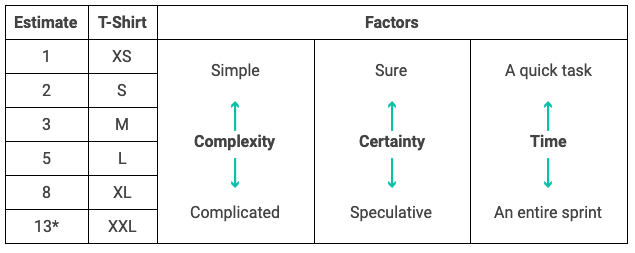
Estimates are how we track the level of effort of issues. Every issue should have an estimate once it is pulled on deck or into progress, and estimates can be adjusted as needed. Check estimates for accuracy whenever you close an issue. Use 0 estimates for duplicates and other issues we don't work on.
Like labels, estimates are required because they are a critical component of the service delivery data we use to track, analyze, and improve our work. Estimates are also useful for
Sprint planning — to see when a person or team has too many issues (or too few!) issues assigned to them
Stakeholder discussions when prioritizing features — being able to show stakeholders easily that we can accomplish, say, three small tasks, two medium, or one large
Velocity tracking — i.e. predicting the likelihood we can complete a project by a given date
Estimates (1-5) align with shirt sizes (XS-XXL). Complexity, uncertainty, and time increase as numbers/sizes increase
Assignees
An issue should be assigned to the person/people who will tackle it. This enables team members to filter down to issues they are responsible for easily.
Epics
Epics are a powerful feature that Zenhub adds to Github. They allow you to group related tasks and easily track them from one place. Here is a solid guide to how they work. Here is an example from another City of Austin project.
For ongoing tasks such as a recurring meeting, it may help to create an epic and put the individual instances of the tasks inside it. Here is an example of that type of usage for a task performed for a customer regularly.
Epics do not need estimates assigned to them manually. Instead, the effort is represented by the total of all the story points in the epic's issues. That said, you can add estimates to the epic issue to represent the effort used to managing the sub tasks, i.e. meetings with stakeholders as the work progresses.
Ultimately, epics can group whatever makes sense for you and your collaborators. Some people prefer issues with task lists inside them. That's fine as long as the issue doesn't require more effort than we can represent in our estimate scale for a single issue.
Github recently introduced sub-issues, and Zenhub added layers of functionality on top of them. The DTS Product team hasn't yet decided if/how we will modify our workflow to incorporate these new features. For now, we're continuing to use epics as we always have.
Learning More
Here are some additional guides for some of our most relied-upon Zenhub functionality:
"Use multi-action to make bulk Issue updates" on this page
The Zenhub docs are super-solid, and we encourage you to peruse them at your leisure. Remember that some functionality—renaming and reordering pipelines themselves, for example—will affect the workspace for the whole team. We're always looking for ways to improve our process, so if you come across an approach or functionality you think is promising, add it to the agenda for our weekly Product Sync or share it in the #atd-product Slack channel!
In either case, we begin by verifying that all our DTS project prerequisites are met:
Dedicated product owner to support requirements gathering, user research, and user onboarding
Division Manager sponsor to champion the project at the executive level
A commitment from the customer to collaborate in DTS's iterative, user-centered development process
Then either create a new project index issue or convert the existing issue to match the project index template. Either way, make sure that the 'Project Index' label is on the issue so that an evaluation record for the project is added to the DTS Portal and it appears on the website.
Don't worry about building out a robust project index before scoping the request. Just make sure the name and description (the first 1-2 sentences) are good and that it has all the right labels. You can comment out the rest of the template to fill out when you have more information.
Move the issue to the "Needs Scoping" Zenhub pipeline.
Scoping
PM schedules an intake meeting. Ideally, this will include actual users as well as the workgroup manager.
Meet and take notes; photos/recording may also be helpful.
Add notes/photos/recording to Github issue.
If necessary, update issue description to ensure it clearly summarizes request.
Builder Huddle
PM sets up meeting with potential builders, e.g. Dev for a Vision Zero Viewer project, Apps for a ROW Portal project. If we aren't sure which route we'll go or the solution will require both, add to the Dev/Product Sync agenda to discuss.
Sometimes we realize that the request isn't actually project-sized during the intake meeting or the builder huddle. No worries, we had a good opportunity to learn more about our customers' work. Might make sense to organize this work as an epic, once the time comes.
Product Sync
After assessing effort with the builders, it's time to assess value with the product team.
Add to DTS Product Sync agenda for a "Refinement-week", i.e. the second Wednesday in a sprint. If feedback is needed sooner, or the project was initiated internally (like work on our technical infrastructure), bring it to Dev + Product Sync instead.
After the evaluation is complete, the Austinmobility.io script will pick them up and you will be able to see the project in relation to other projects in our backlog using the prioritization matrix.
If you don't already have regular Sprint Reviews with the project's stakeholders, set up recurring meetings for the duration of the project so that you can demo work and get feedback.
Create a folder in the Projects/Products DTS Drive.
. Fill out the "Description" field and use the hex code #3D3D3D for "Color." Use this label for all issues moving forward so that they render on the projects' website page and are easy to surface on Zenhub/Github.
Fill out the rest of the project index including background, outcomes, timeline, etc. Add these headings to the issue:
Convert the project index issue into an epic and assign future issues to the epic moving forward. Zenhub allows you to nest epics or assign issues to multiple epics, so feel free to use that functionality if you find it helpful.
Ensure that everyone who has stake in the project, from potentially impacted staff to interested executives, is aware the project is moving forward. Invite stakeholders to come to sprint reviews and/or participate in user research. Ask them who else should be included.
Perform requirements gathering with users. We often begin with user interviews and store requirements either as user stories for in-house applications or in a software comparison matrix for off-the-shelf solutions.
Document bugs, feature requests, and enhancements as Github issues. You may want to encourage your users to contribute using the DTS Service Request.
When you click the "New Issue" button in the upper righthand corner of most pages in Github, you'll find issue templates for bug reports, features, and enhancements. You have to scroll to the bottom of the page and click to the "Open a blank issue" link to get a plain issue. To skip all that, bookmark the direct link to the blank issue form and add it to your browser bar.
Work with the team lead—via Github comments or in a planning/refinement/sync meeting—to assign an estimate to each issue. Zenhub's Planning Poker is also a fun way to estimate asynchronously.
Bring complex issues to Backlog Refinement (Apps | Dev) to discuss with builders. Break them up into smaller issues as necessary, document the agreed-upon approach, and align on an estimate.
Prioritize work with stakeholders during Sprint Reviews.
If practical, versions of an application on a regular basis.
Perform usability testing to surface improvements to the user experience. Since we don't have dedicated user researchers at DTS, we love for its simplicity and depth of insight. we've done. It's handy to record sessions on Teams so that you can expand on your notes, embed screenshots/clips in issues, etc.
Completion
A project is considered complete when the minimum viable product—captured in the "Scope and Deliverables" section of the issue's project index—is delivered to users.
For complex projects, you might consider making an "Onboarding and Stabilization" epic in the project to capture any critical bugs documentation needs that surface during roll out and keeping the project open until those issues are addressed.
Often, there are still issues in the backlog that are not actually must-haves. Remove the project label, remove them from the epic, and review them the next time you meet with stakeholders so they can prioritize those against any of their other ongoing requests.
Retire the project label by adding "[Archive]" to the "Description" field and update the hex code to #B8B8B7.
Write a final update as a comment on the index issue and close the issue.
By default, completed projects show on "Complete" tab on the “Projects" page of the website, but you can apply the Archived Project label to prevent that. We like to curate this page to showcase our most compelling, impactful, and well-documented work.
We believe strongly that we do our best work when we work openly. It’s why we’ve built all of our reporting infrastructure on top of open data, and we’re continuing that practice with dockless mobility data.
We publish anonymized dockless trip records to our open data portal on an hourly basis. The dataset is here.
We have been very thoughtful about how we are approaching the release of this data. We are following the recommendations outlined in the Civic Analytics Network’s recent open letter, which was signed by Chief Data Officers and industry experts across the country.
Specifically, our trip records:
Do not include any vendor-provided identifiers. The trip IDs and device IDs in our dataset are completely arbitrary and cannot be traced to a specific operator.
Have start and end times rounded to the nearest 15 minutes.
Use latitude and longitude values rounded to three decimal degrees (roughly the area of a city block).
This is a public website that pulls directly from our public datasets. Here's the source code.
Trip Explorer
We have built an interactive web map which visualizes where dockless trips are starting and ending. We’re calling it the Dockless Data Explorer, available at dockless.austintexas.io.
Open Source
The source code for our dockless mobility tools is freely available in five repositories (and counting):
Here are some handy queries for fetching dockless data summaries from the Open Data Portal
Scooter and Bike trips by Month/Year*
Dockless Trips by vehicle type and month/year*
*Denotes that the query includes a filter for min/max distance (.1 miles / 500 miles) and max time (24 hours)
Dockless Trips by Day
The where clause can be modified to specify year and month. This selects february and march 2019 date_extract_m(start_time) in (2, 3) and date_extract_y(start_time) = 2019
Each project or product is rendered as a tile using content from the index issue:
Various Github content is used for the project/product "tiles"
Issues and activity
All issues with the Product: label for a given product will be rendered on the Issues tab (example) and all comments on the project/product Index issue itself will show on the Activity tab (example).
Evaluation
In order for the Evaluation tab (example) to render correctly, the project must have an evaluation completed in the DTS Portal.
Once an issue is labeled Project Index, it will automatically be added as a project in the DTS Portal.
If your project is not listed in Knack, the ETL may not yet have run. You can manually create a new entry in Knack, just make sure you provide the correct github issue # when creating the entry. The ETL will overwrite any project name you supply manually.
You can manually create a project if your project is not listed
Evaluating effort
Product Managers work with builders—the Apps, Dev, Data Science, or Geo teams—to assess the level of effort for a project.
Evaluating value
A project's predicted value is added to the Product Sync agenda so that the Product team can review it as a group and determine a score together.
Using Google within these parameters ensures we comply with CTM's security protocols. We can fulfill PIRs, follow records-retention policies, and maintain access to employees' work when they leave the City.
Account creation
Employees should not use personal Google accounts for City work since all City-related email correspondence must reside in Office 365. So you will need to create a Google account with your @austintexas.gov email address that is not attached to a Gmail account:
Application Management
We have an that we manage on our DTS Portal. This inventory list will show the various applications that our department uses and that we manage.
Some of the main functions our team does is:
Software Support
Python
Install package in editable mode
From parent directory of package:
Index Issue Specifications
We use "index" Github issues to centralize information about each of our projects and products. It is critical that these issues follow a standard labeling scheme and content format so that is accurate, team members work is coordinated and efficiently tracked, and we have an accessible, high-level view of the project/product on the .
Create a new Project or Product Index by selecting the from the atd-data-techGithub repository.
Product Manager Portfolios
Divisions
Products
Server Operation
Script Management
shows an active job status log.
Jobs-API
The Jobs API is a tool for logging the outcome of ETL scripting jobs. It is designed to support the task of "incremental" data loads—i.e., loading only new or updated records from a source database to a destination database.
The typical ETL workflow using the Job API is:
At the beginning of your ETL job, query the Job API to retrieve the timestamp of the last time your job ran successfully.
Use this timestamp as a temporal filter to extract new/modifed records from the source database.
## Scope & Deliverables

What are we delivering? What’s in scope, and what isn’t? Describe constraints you’re working with, e.g. “Can’t impact **\_**‘s workflow,” known roadblocks.

## Desired Outcomes

Impact this project can have, success metrics

## Timebox

How long should this take to build; optional section w/ caveats for more complex projects.

## References
- Google Drive link
https://data.austintexas.gov/resource/7d8e-dm7r.json?$query=select avg(trip_duration)/60 as avg_duration_minutes, sum(trip_distance) * 0.000621371 as total_miles, avg(trip_distance) * 0.000621371 as avg_miles, count(trip_id) as total_trips, date_extract_m(start_time) as month, date_extract_y(start_time) as year where trip_distance * 0.000621371 >= 0.1 and trip_distance * 0.000621371 < 500 and trip_duration < 86400 group by year, month
https://data.austintexas.gov/resource/7d8e-dm7r.json?$query=select vehicle_type, avg(trip_duration)/60 as avg_duration_minutes, sum(trip_distance) * 0.000621371 as total_miles, avg(trip_distance) * 0.000621371 as avg_miles, count(trip_id) as total_trips, date_extract_m(start_time) as month, date_extract_y(start_time) as year where trip_distance * 0.000621371 >= 0.1 and trip_distance * 0.000621371 < 500 and trip_duration < 86400 group by vehicle_type, year, month
https://data.austintexas.gov/resource/7d8e-dm7r.json?$query=select vehicle_type, avg(trip_duration)/60 as avg_duration_minutes, sum(trip_distance) * 0.000621371 as total_miles, avg(trip_distance) * 0.000621371 as avg_miles, count(trip_id) as total_trips, date_trunc_ymd(start_time) as date_ where trip_distance * 0.000621371 >= 0.1 and trip_distance * 0.000621371 < 500 and trip_duration < 86400 and date_extract_m(start_time) in (2, 3) and date_extract_y(start_time) = 2019 group by vehicle_type, date_trunc_ymd(start_time)
Often, a major feature or enhancement to an existing product will require enough resources and coordination that it qualifies as a project. Warehouse Inventory, for example, was a major set of features and enhancements to AMD Data Tracker and the Finance and Inventory App, so it needed both Product and Project labels
Impact: 3-Minor — Deteriorates TPW service delivery
Impact: 4-None — Does not affect TPW service delivery
Screenshot of Google account creation page with "Use my current email address instead" link circled
Click "Use my current email address instead."
Enter your @austintexas.gov email address.
Check your email, including your junk/spam folder, and confirm your account.
Remember, never add a Gmail address to this account! It's against City policy and creates a permissions headache for your supervisor.
Permissions
All your documents should be saved within a folder owned by a shared resource account, coaatdamd@austintexas.gov. This means we can all search and access each other's files, even if someone is out of the office or leaves the team.
Sensitive information
Under no circumstances should sensitive information be stored in Google Drive. This includes CJIS and HIPAA data, along with any personally identifiable information about individuals in the community.
From the same directory as setup.py build the new version:
Upload the new version to . (You'll be prompted to enter your username/password):
Project Index
All projects which have been scoped require a project index issue to be placed in the appropriate Zenhub pipeline. The issue title, description, and labels should follow the below guidelines.
Title
The issue title should be prefixed with Project: . For example, Project: Warehouse Inventory Management.
Labels
Project Index
Project: xzy— A project-specific label that you will create, following our project label conventions
Workgroup: xyz — the project stakeholder workgroups
Assignees
All DTS team members who contributed substantially to the project, including at least one product manager or team lead.
All products require a product index issue to be placed in the appropriate Zenhub pipeline. Once a product has been released, it should be placed in the Ongoing pipeline indefinitely until it is removed from service. The issue title, description, and labels should follow the below guidelines.
Title
The issue title should be prefixed with Product: . For example, Product: Data Tracker
Labels
Product Index
Product: xzy— A product-specific label that you will create, following our product label conventions
Workgroup: xyz — the workgroup(s) of the product's primary users
All projects and products should have at least one image so that missing thumbnails don't disrupt the website design. We prefer these thumbnails options:
Full-screen screenshots or large diagrams as the first image - these don't render well in tiles. Include these later on in the issue if they are helpful way to communicate the work.
Vendor logos - these doesn't give any information about the platform or use case and promote a commercial companies
The image should be at least 1000px wide, with a 3:2 aspect ratio. This tool makes it easy to crop/resize as needed.
It's very important that the job server keeps from timing out.
knack-proxy was a flask app, but has been taken down.
Its functionality was no longer needed after Boomi replaced the Enterprise Service Bus (ESB). Boomi is able to communicate directly with Knack. The change-over occurred in January, 2026.
Since we converted this code into an async Sanic app we haven't had issues with it failing. But we did previously with Flask and never really got to understand the root issues.
If it goes down, log into atd-data01 via ssh and restart the containerized app with docker restart cctv-service.
atd-data01 is our main/production data publishing server.
If atd-data01 crashes, it would just need to be restarted. Insert bash command sudo reboot. All of the data scripts are on cron jobs and will restart at various times. The two service app in docker containers on atd-data01 do need to be restarted manually. Those restart scripts live in their respective Github READMEs.
Bash Commands
Allocate Disk Space
List volumes and usage:
Check the free available space in the Volume group
Extend the volume (here, adding 8GB)
Expand the volume:
All done.
Miscellaneous:
run all shell scripts inside a folder
scp transfer files from local to remote directory:
Name descriptor of the job which uniquely identifies the ETL job
start_date
TIMESTAMP WITH TIME ZONE NOT NULL
The job's start datetime
end_date
Python Example
We've written a Python utility to interact with the jobs interface. It's included in our transportation-data-utils (tdutils) pacakge. tdutils requires Python 3 and can be installed with $ pip install tdutils.
Begin by importing the jobutil library and creating a new job instance:
Assuming you've run this job successfully in the past, you can use the most_recent method to return a unix timestamp from the last successful job run:
Register your new job with job.start(). The API returns a JSON representation of newly created job record:
We have successfuly registered a new job. Note that the status was automatically set to in_progress. If we were to call job.most_recent() again, the results are the same as before, because the status of current job is not success:
From here, continue your ETL process as needed. When your ETL is complete, use job.result() to update your job status accordingly. Again, a JSON representation of the job record is returned:
Note that the end_date was populated automatically. Because the job was successful, calling job.most_recent() now returns the timestamp of our current job:
You should also register job failures. The errror result is availabe for such purposes: